Data Folder
The data folder of Warudo is a folder names StreamingAssets, which is used to store various data files that Warudo can use.
How to find it
You can click Menu ➜ Open data folder to open it.
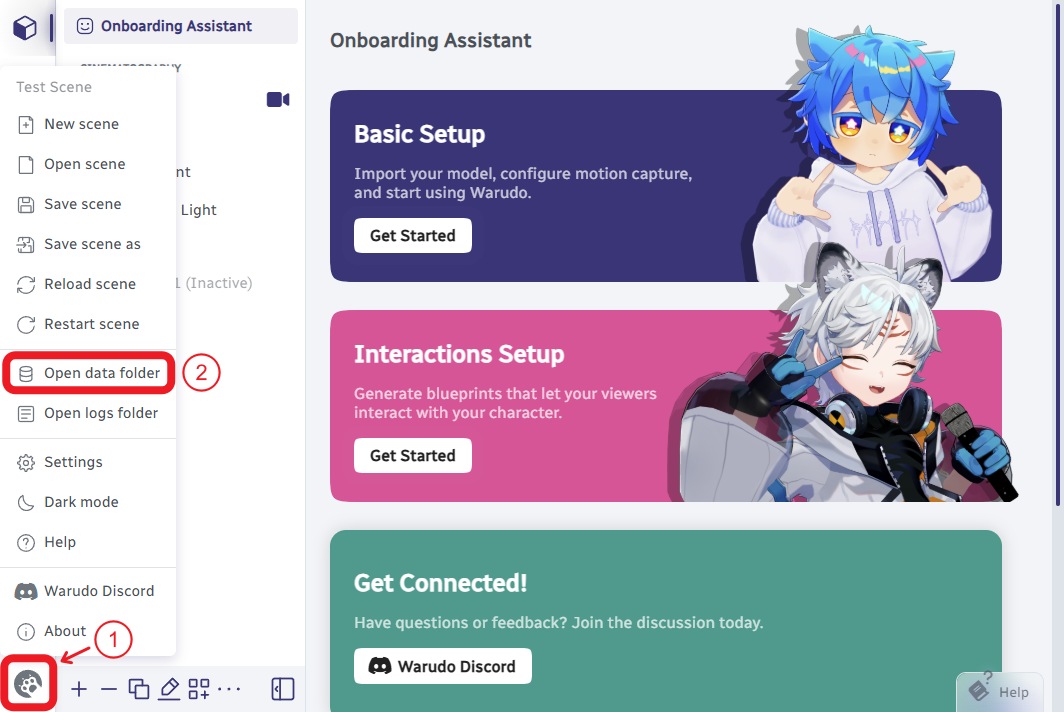
It is usually located at path:
<STEAM_ROOT_DIR>\steamapps\common\Warudo\Warudo_Data\StreamingAssets
Subfolders
The data folder contains multiple subfolders, used to categorize different types of files.
Details are as follows (in alphabetical order):
Binaries
This folder contains some binary files related to the program.
Please do not delete or modify them.
CharacterAnimationProfiles
This folder is used to store the character's animation profile files.
Supported Format: JSON (*.json)
When you use the “Save Animation Profile” button in the “Animation” Section of the “Character” Asset, the character's current animation settings will be saved to this folder.
You can use the profile files in the following scenarios:
- “Character” Asset – “Animation” Section – “Load Animation Profile” Button
- “Load Character Animation Profile” Node – “Animation Profile” Port
You can also open this folder directly using the “Open Animation Profiles Folder” button in the “Animation” Section of the “Character” Asset.
CharacterAnimations
This folder is used to store character animation files that the characters can play.
Supported Formats:
- Unity Animation Clip (
*.anim) - Warudo Character Animation Mod (
*.warudo)
You can use the animation files in the following scenarios:
- “Character” Asset – “Animation” Section – “Idle Animation” Option
- “Character” Asset – “Animation” Section – “Overlaying Animations” – “Animation” Option
- “Character Animation Source” Node – “Value” Port
- “Get Random Character Animation” Node – “Character Animations” Port
- “Play Character One Shot Overlay Animation” Node – “Animation” Port
- “Play Character Idle Animation” Node – “Animation” Port
You can also open this folder directly using the “Open Character Animations Folder” button in the “Animation” Section of the “Character” Asset.
CharacterExpressionProfiles
This folder is used to store the character's expression profile files.
Supported Format: JSON (*.json)
When you use the “Save Expression Profile” button in the “Expressions” Section of the “Character” Asset, the character's current expression settings will be saved to this folder.
You can use the profile files in the following scenarios:
- “Character” Asset – “Expressions” Section – “Load Expression Profile” Button
You can also open this folder directly using the “Open Expression Profiles Folder” button in the “Expressions” Section of the “Character” Asset.
Characters
This folder is used to store character model files.
Supported Formats:
- VRM 0.x Model (
*.vrm) - VRM 1.0 Model (
*.vrm) - Warudo Character Mod (
*.warudo)
You can use these files in the “Source” Option of the “Character” Asset.
You can also open this folder directly using the “Open Characters Folder” button in the “Character” Asset.
Clients
This folder contains some files related to the program.
Please do not delete or modify them.
Environments
This folder is used to store enviroment files.
Supported Format: Warudo Environment Mod (*.warudo)
You can use these files in the “Source” Option of the “Environment” Asset.
You can also open this folder directly using the “Open Enviroments Folder” button in the “Enviroment” Asset.
HandGestureProfiles
This folder is used to store the character's hand gesture files.
Supported Format: JSON (*.json)
When you use the “Record New Hand Gesture” button in the “Detect Character Hand Gesture” Node, the character's hand gesture will be saved to this folder.
You can use the profile files in the following scenarios:
- “Detect Character Hand Gesture” Node – “Gesture” Port
HandPoses
This folder is used to store character's hand pose files.
Supported Formats: (Under development ...)
You can use the hand pose files in the following scenarios:
- “Character” Asset – “Animation” Section – “Override Hand Poses” Option – “Pose” Option
- “Enable Character Override Hand Pose” Node – “Pose” Port
Images
This folder is used to store the image files.
Supported Format: Image formats
You can use the image files in the following scenarios:
- “Spawn Sticker From Local Image” Node – “Image Source” Port
- “Get Random Local Image” Node – “Images” Port
- “Screen” Asset – “Image Source” Option (“Content Type” should be “Image”)
- “Discover” Panel – “Published Items” Tab – “Create Item” – “Preview Image” Option
LipSyncProfiles
This folder contains some files related to the program.
Please do not delete or modify them.
Localizations
This folder contains some files related to the program.
Please do not delete or modify them.
MMD
Supported Format: Vocaloid Motion Data (MikuMikuDance) (*.vmd)
You can use the files in the following scenarios:
- “MMD Player” Asset – “Character Motion” Option
Motions
Supported Format: Warudo Animation Data (*.wanim)
You can create the Warudo Animation Data files by “Motion Recorder” Asset.
You can use the files in the following scenarios:
- “Motion Player” Asset – “Motion Sources” Option
You can also open this folder directly using the “Open Motions Folder” button in the “Motion Recorder” Asset.
Music
Supported Formats: Audio formats
You can use the files in the following scenarios:
- “Music Player” Asset – “Source” Option
- “Play Music” Node – “Source” Port
- “Music Source” Node – “Value” Port
You can also open this folder directly using the “Open Music Folder” button in the “Music Player” Asset.
Particles
Supported Format: Warudo Particle Mod (*.warudo)
You can use the files in the following scenarios:
- “Prop” Asset– “Source” Option
- “Particle Source” Node – “Value” Port
- “Get Random Particle” Node – “Particles” Port
- “Spawn Particle” Node – “Source” Port
- “Throw Prop” Node – “Impact Particle Source” Port
PendulumPhysicsProfiles
This folder is used to store the pendulum physics profile files.
Supported Format: JSON (*.json)
You can use the files in the following scenarios:
- Motion Capture Assets – “Pendulum Physics” Section – “Load Pendulum Physics Profile” Button
- “Load Pendulum Physics Profile” Node – “Pendulum Physics Profile” Port
You can also open this folder directly using the “Open Pendulum Physics Profiles Folder” button in the “Pendulum Physics” Section of the Motion Capture Assets.
Playground
Supported Format: C# Source Code File (*.cs)
Please check: Playground
Plugins
Supported Format: Warudo Plugin Mod (*.warudo)
Props
Supported Format: Warudo Prop Mod (*.warudo)
You can use the files in the following scenarios:
- “Prop” Asset– “Source” Option
- “Prop Source” Node – “Value” Port
- “Get Random Prop” Node – “Props” Port
- “Throw Prop” Node – “Prop Source” Port
You can find this folder by selecting Menu → Open Data Folder and opening the Props folder.
Scenes
This folder is used to store the Warudo Scene files.
Supported Format: JSON (*.json)
You can use the scene files in the following scenarios:
- Menu – Open scene
Screenshots
When you use the “Take Screenshot” button in the “Output” Section of a “Camera” Asset, the camera's current output will be saved to this folder in PNG format.
Similarly, when you invoke a “Take Screenshot” Node, the selected camera's current output will be saved to this folder in PNG format.
Sounds
Supported Formats: Audio formats
You can use the files in the following scenarios:
- “Play Sound” Node – “Source” Port
- “Sound Source” Node – “Value” Port
- “Get Random Sounds” Node – “Sounds” Port
- “Throw Prop” Node – “Launch/Impact Sound Source” Ports
You can also open this folder directly using the “Open Sounds Folder” button in the “Play Sound” Node.
SteamVR
This folder contains some files related to the program.
Please do not delete or modify them.
Videos
This folder is used to store the video files.
Supported Formats: Video formats
You can use the video files in the following scenarios:
- “Screen” Asset – “Video Source” Option (“Content Type” should be “Video”)
Additional Subfolders
Some plugins from Steam Workshop may also create additional subfolders under StreamingAssets.
We also recommend you to create the following Subfolders to better manage files related to Warudo:
AssetProfiles
This folder can be used to store asset profile files from “Export asset to file” button.
Blueprints
This folder can be used to store blueprint files from “Export blueprint to file” button.
Authors